
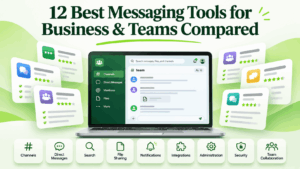
Messaging tools are applications that help individuals and teams exchange messages, share files, organize discussions, and coordinate work. Business messaging platforms extend basic instant messaging with project channels, searchable conversations, video calls, administrative controls, and integrations with workplace applications.
The best messaging tool depends on how an organization communicates. Slack and Microsoft Teams are suitable for cloud collaboration and connected business workflows. Zulip specializes in structured asynchronous discussions, while Mattermost and Rocket.Chat support technical workflows and self-hosted deployment. TrueConf combines corporate messaging with on-premises video conferencing, whereas Conferendo primarily serves users looking for video-centered communication.
For business buyers, the most important differences concern conversation structure, integration capabilities, employee administration, and infrastructure requirements. A suitable platform should help employees find information, collaborate across departments, and preserve important decisions without generating unnecessary communication.
Best Messaging Tools at a Glance
|
Messaging tool |
Main advantage |
Best for |
Deployment |
|---|---|---|---|
|
Slack |
Channels, integrations, and workflow automation |
Project teams and digital businesses |
Cloud |
|
Microsoft Teams |
Integration with Microsoft 365 |
Enterprises using Microsoft products |
Cloud |
|
Google Chat |
Communication connected to Google Workspace |
Document-focused teams |
Cloud |
|
Rocket.Chat |
Customizable messaging and customer communication |
Organizations requiring flexible infrastructure |
Cloud or self-hosted |
|
Conferendo |
Group video chat and live communication |
Small video-focused groups |
Hosted service |
|
Zoom Workplace |
Messaging connected to video meetings |
Hybrid and meeting-intensive teams |
Primarily cloud |
|
Zulip |
Topic-based conversations |
Engineering and distributed teams |
Cloud or self-hosted |
|
TrueConf Server |
Corporate messaging and private video conferencing |
Enterprises with controlled infrastructure |
On-premises |
|
Mattermost |
Operational messaging and structured workflows |
IT, security, and technical teams |
Cloud or self-hosted |
|
Element |
Federated and encrypted messaging |
Organizations requiring independent communication networks |
Managed or self-hosted |
|
Nextcloud Talk |
Messaging integrated with documents and files |
Organizations using Nextcloud |
Self-hosted |
|
Wire |
End-to-end encrypted enterprise communication |
Security-sensitive organizations |
Cloud or on-premises |
These platforms are not interchangeable. A company that primarily works with documents may prefer a messenger integrated with its office suite. An engineering team may value topic-based conversations and technical integrations. An organization operating private networks may require messaging and video communication that do not depend on public cloud services.
The following comparison examines these differences, including practical use cases, limitations, deployment requirements, and the factors that matter when selecting business messaging software.
What Are Messaging Tools?
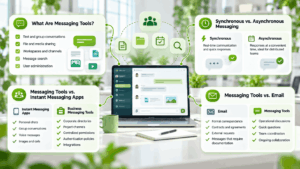
Messaging tools are software applications that allow users to exchange text messages, documents, images, and other digital information through individual or group conversations. Most provide direct messaging, while business-oriented platforms also support shared workspaces, message search, file sharing, and user administration.
Unlike email, messaging software is primarily designed for ongoing conversations. Employees can ask questions, share updates, and discuss work without creating a new email chain for every subject.
Messaging can be synchronous or asynchronous. In synchronous communication, participants exchange information almost immediately. In asynchronous communication, employees respond when their schedules allow, which is particularly useful for teams working across different time zones.
Messaging Tools vs. Instant Messaging Apps
Instant messaging applications usually focus on communication between individuals. Their common features include personal chats, group conversations, voice messages, images, and calls.
Business messaging tools add organizational capabilities such as corporate directories, shared project channels, centralized permissions, authentication policies, and integrations with workplace systems.
For example, a personal messenger can help colleagues coordinate an informal meeting. A corporate messaging platform can also preserve departmental discussions, manage access when employees leave, and connect conversations to business processes.
Messaging Tools vs. Email
Email remains useful for formal correspondence, contractual communication, external requests, and messages requiring conventional documentation.
Messaging platforms are generally better suited to frequent operational discussions, short questions, and coordination within established teams.
A business might receive a customer request by email, discuss the response in an internal messaging channel, and assign the resulting work through a project management system.
The distinction matters because not every conversation requires an immediate response. Effective organizations use each communication method for the tasks it handles most efficiently.
Why Are Messaging Tools Important for Businesses?

Business processes frequently involve several employees with different responsibilities. A sales representative may need technical information before responding to a customer, a marketing department may require legal approval before publishing materials, and an IT team may need to coordinate specialists during a system failure.
Corporate messaging platforms make these interactions easier to manage by bringing discussions into shared, searchable environments.
Faster Access to Information
Employees can ask questions in relevant channels instead of contacting several colleagues individually. For example, a customer support representative can involve engineers in a technical support channel without organizing a separate meeting.
Better Visibility Across Departments
Shared conversations make project updates available to authorized participants. An employee joining an existing project can review earlier discussions and understand how decisions were made, provided the relevant history is accessible.
Preservation of Organizational Knowledge
Searchable message histories help retain technical explanations, project decisions, internal instructions, and troubleshooting information.
However, final decisions, approved documents, and assigned responsibilities should also be preserved in the appropriate systems rather than remaining exclusively in chat history.
Support for Distributed Teams
Messaging tools connect employees across offices, home workplaces, and different time zones. Asynchronous communication reduces scheduling conflicts, while integrated calling and screen sharing help resolve questions that require visual explanations.
Centralized Administration
Enterprise messaging systems can provide account management, access policies, and organizational settings. These capabilities help IT departments manage employee access consistently, particularly when people change roles or leave the company.
Messaging Tools Statistics: How Digital Communication Affects Work?
Workplace messaging is an essential part of daily operations, but increasing communication volume can create challenges for employee concentration.
Microsoft’s Work Trend Index research, published in June 2025, examined aggregated and anonymized Microsoft 365 activity to understand how messages, meetings, and email affect workplace communication.
The research reported that the average worker in the studied Microsoft 365 population received 153 Microsoft Teams messages per weekday. Messages per person also increased by 6% year over year globally.
|
Workplace communication metric |
Research finding |
Business implication |
|---|---|---|
|
Microsoft Teams messages |
153 received per worker per weekday on average |
Messaging creates a substantial daily information flow |
|
Message volume growth |
Messages per person increased by 6% year over year globally |
Communication demand continues to rise |
|
Frequent interruptions |
The most heavily notified 20% of users received a meeting, email, or chat notification approximately every two minutes during core working hours |
Employees may experience fragmented attention |
|
Unscheduled meetings |
60% of meetings among the most meeting-intensive users were unscheduled or ad hoc |
Teams frequently shift from planned work to immediate discussions |
|
After-hours chat activity |
Increased by 15% year over year |
Communication can extend beyond standard working hours |
|
Cross-time-zone meetings |
30% of meetings involved multiple time zones |
Distributed teams benefit from asynchronous communication |
Source: Microsoft Work Trend Index, Breaking Down the Infinite Workday, June 2025.
The findings should not be interpreted as universal averages for all employees. The telemetry excluded educational and European Union tenants, and some figures describe particularly active user groups. The two-minute interruption metric includes meeting and email notifications, not just chat messages.
The study illustrates an important organizational challenge: communication platforms make colleagues easier to reach, but companies still need rules that protect focused work.
Insight 1. Faster Messaging Does Not Automatically Mean Faster Work: A messaging platform can deliver messages instantly while slowing down the work those messages are intended to support.
The problem usually arises when employees receive too many notifications, discussions are scattered across unrelated channels, or routine questions are treated as urgent.
Different situations require different communication practices. An IT team responding to a critical incident needs immediate alerts and live coordination. A content team reviewing documents may benefit more from structured discussions that employees revisit at scheduled intervals.
Organizations should distinguish between urgent operational messages, routine questions, project discussions, and informational announcements.
The purpose of workplace messaging is to reduce communication friction, not maximize the number of messages employees exchange.
Types of Messaging Tools
Business messaging software can be grouped according to its primary purpose.
|
Type |
Main purpose |
Examples |
|---|---|---|
|
Team collaboration messengers |
Organize discussions around projects and departments |
Slack, Google Chat, Zulip |
|
Unified communication platforms |
Combine messaging with calls and meetings |
Microsoft Teams, Zoom Workplace, TrueConf |
|
Self-hosted messengers |
Provide communication on privately managed infrastructure |
Rocket.Chat, Mattermost, Nextcloud Talk |
|
Federated messengers |
Connect independently administered communication networks |
Element |
|
Security-focused messengers |
Prioritize encryption and controlled communication |
Wire |
These categories overlap. Element also supports self-hosting, while TrueConf combines privately hosted messaging with native video conferencing.
The distinction helps buyers identify the main purpose of each platform and determine which capabilities are native or require additional components.
12 Best Messaging Tools for Business and Team Communication

The following platforms represent different approaches to workplace messaging. Each review focuses on distinctive functions, practical use cases, strengths, and limitations.
1. Slack
Best for: Project teams and digital businesses that need organized conversations, application integrations, and workflow automation.
Slack is a cloud-based workplace messaging platform built around channels, direct messages, and connections to business applications.
Its value extends beyond conversations. Slack can turn routine requests and shared discussions into lightweight operational workflows.
Channels and Threaded Discussions
Slack channels can represent departments, projects, customers, or operational processes.
Public channels provide visibility across the workspace, while private channels restrict access to selected members. Threaded replies allow employees to discuss individual questions without interrupting the main conversation.
Search capabilities help users locate previous messages, files, and relevant discussions.
Slack Connect
Slack Connect allows participating organizations to communicate through shared channels and conversations.
Companies can collaborate with customers, suppliers, and partners without moving every exchange to email. External access remains subject to the administrative policies of participating organizations.
Huddles and Clips
Slack Huddles provide lightweight audio and video communication inside the workspace.
Employees can use them when a short live discussion is more efficient than a long text exchange.
Clips allow users to record audio or video messages for colleagues to review later, supporting communication between employees who are not available at the same time.
Canvas, Lists, and Workflow Builder
Slack Canvas provides shared notes, instructions, and project information.
Slack Lists supports lightweight task tracking, including fields, assignees, and workflow-related information.
Workflow Builder can automate recurring processes such as collecting requests, distributing notifications, and updating work items.
These functions are particularly useful when a company receives repeated internal requests.
Practical Example: Managing Internal Requests
Consider a company where employees regularly ask the IT department for new software access.
Instead of sending unstructured messages to individual technicians, employees submit a request using a Slack workflow.
The workflow collects the necessary details and sends the information to a designated channel. The team tracks the request through Slack Lists or a connected service management application.
This creates a clearer process because the original request, its owner, and the resulting action are connected.
For complex service management requirements, integration with a dedicated ticketing platform remains preferable.
Strengths: Slack combines channel-based communication, Slack Connect for external collaboration, Huddles for quick conversations, and automation through Workflow Builder. Canvas and Lists help connect discussions with lightweight operational processes.
Limitations: Slack is primarily cloud-based. Advanced functionality and extended history access depend on subscriptions. Organizations also need clear channel and notification policies to prevent communication overload.
2. Microsoft Teams
Best for: Enterprises using Microsoft 365 that need messaging connected to documents, meetings, and corporate identity management.
Microsoft Teams combines workplace communication with the broader Microsoft 365 environment.
Its main strength is the relationship between conversations, document storage, collaborative editing, and enterprise administration.
Different Channel Types
Teams supports standard, private, and shared channels.
A standard channel is available to members of the corresponding team. A private channel restricts participation to selected members and uses a separate SharePoint site for its files.
A shared channel supports collaboration with selected participants who may not belong to the parent team. Cross-organization access requires compatible administrative settings, including Microsoft Entra configurations.
This distinction matters when employees, departments, and external partners need different levels of access.
Document Collaboration
Files shared through Teams are connected to Microsoft 365 storage services.
Files in standard team channels are generally stored in the team’s SharePoint site, while files shared through ordinary chats are associated with OneDrive.
Authorized employees can collaboratively edit Word, Excel, and PowerPoint documents.
This allows conversations and working materials to remain connected.
Microsoft Loop
Loop components allow employees to share editable content inside supported Microsoft applications.
For example, a group can maintain a shared action list directly within a conversation. Changes remain synchronized where the component is supported.
Meetings and Calls
Teams provides audio calls, video meetings, screen sharing, scheduling, and meeting chats.
Additional intelligent features, including Microsoft 365 Copilot capabilities, depend on licensing and configuration.
Enterprise Administration
Teams uses Microsoft 365 identity and administrative infrastructure.
Organizations can configure access policies, guest collaboration, retention settings, and supported auditing capabilities.
Strengths: Microsoft Teams connects messaging with SharePoint, OneDrive, Microsoft 365 document editing, multiple channel access models, and enterprise identity management.
Limitations: Licensing and administrative configuration can be complex. Standard Teams is cloud-based and is not a fully autonomous internal messaging server.
3. Google Chat
Best for: Organizations that use Google Workspace for document editing, file storage, and daily communication.
Google Chat provides direct messages, group conversations, and persistent spaces.
Its main advantage is the connection between messaging and Google Docs, Sheets, Slides, Drive, Calendar, and Meet.
Spaces and Threaded Conversations
Google Chat spaces can be organized around projects, departments, or recurring activities.
Threaded discussions help employees follow specific questions without mixing unrelated topics.
For example, a marketing space may contain separate discussions about campaign materials, publication schedules, and customer feedback.
Spaces can also serve as persistent reference points for files, tasks, and recurring team discussions.
Google Drive Integration
Employees can share documents, spreadsheets, and presentations directly in conversations.
The files remain subject to their existing sharing permissions. This makes it possible to discuss a document in Chat while editing it in Google Docs.
The integration is particularly useful when the same team regularly collaborates on reports, presentations, and spreadsheets.
Shared Tasks
Google Chat spaces support shared tasks with assignees and due dates.
These features can help teams coordinate straightforward work without introducing another application. However, complex planning and reporting usually require a dedicated project management system.
Gemini in Google Chat
Google Chat provides Gemini assistance in supported Google Workspace configurations.
Depending on feature availability and licensing, employees can use Gemini to summarize conversations, identify action items, and find answers in previous discussions.
For example, a project manager returning after several days can request a summary of a space, review outstanding actions, or ask what decision the team reached about a particular task.
Gemini can also assist with summarizing supported files shared in conversations, subject to access permissions and file restrictions.
These capabilities can reduce the time employees spend reviewing lengthy discussions. However, AI-generated summaries should be checked against the original messages before being used for important decisions.
Meetings and Scheduling
Google Meet and Calendar complement Chat by supporting live meetings and scheduling.
Employees can use messaging for routine coordination and move to video communication when immediate discussion is necessary.
Strengths: Google Chat integrates with Workspace documents, Drive permissions, persistent spaces, shared tasks, and Google Meet. Supported Gemini features help summarize conversations, extract action items, and retrieve information from chat history.
Limitations: Google Chat is less specialized in operational workflows than some enterprise messengers. Its standard service depends on Google’s cloud infrastructure, and Gemini functionality is subject to eligibility and configuration.
4. Rocket.Chat
Best for: Organizations that need customizable messaging, self-managed infrastructure, and integration with customer communication channels.
Rocket.Chat provides internal channels, group messaging, administrative controls, and extensibility.
Its distinctive capability is Rocket.Chat Omnichannel, which connects internal communication with selected external customer messaging channels.
Internal Team Communication
Rocket.Chat supports public and private channels, direct messages, and group conversations.
Teams can organize related channels under a shared structure. Employees can use threaded discussions, search, and file sharing to preserve information associated with projects.
Rocket.Chat Omnichannel
Rocket.Chat Omnichannel supports customer conversations originating from compatible communication channels.
A company can add Livechat to its website so visitors can contact support agents.
Other services, including WhatsApp, can be connected through compatible integrations and the relevant service providers.
Depending on configuration and licensing, Omnichannel can support departments, queues, agent assignment, working hours, prepared responses, and reporting.
These functions are distinct from ordinary internal chat functionality.
Practical Example: From Website Chat to Support Resolution
A customer reports a technical problem through Livechat.
The request enters the Omnichannel workspace, where configured routing rules determine how it reaches an available agent or queue.
The agent reviews the customer’s messages and begins troubleshooting. If engineering assistance is needed, the support employee can involve colleagues through an internal channel.
A connected ticketing or customer management system can preserve the issue and its resolution through an appropriate integration.
This workflow connects external customer conversations with internal coordination, although complete case management may require a specialized support platform.
APIs and Integrations
Rocket.Chat provides APIs, webhooks, and an application framework.
Organizations can connect messaging with business applications, monitoring systems, and custom workflows.
Self-Managed and Isolated Deployment
Rocket.Chat supports cloud-hosted and self-managed deployment.
Organizations can operate the application on private infrastructure using supported deployment methods.
Fully isolated operation is available under appropriate commercial plans. It should not be assumed to be included in the standard free Starter offering.
Strengths: Rocket.Chat combines self-managed messaging, programmable integrations, and Omnichannel workflows for routing customer conversations to support agents.
Limitations: Advanced Omnichannel functions, isolated deployment, and enterprise controls depend on licensing. External messaging integrations may involve additional services or fees. Video conferencing and document collaboration may require separate components.
5. Conferendo
Best for: Individuals and small groups that prioritize video chat over comprehensive workplace messaging.
Conferendo is a video-first communication service rather than a conventional enterprise messenger.
Its documented capabilities emphasize direct video conversations, group conferences, and community-oriented communication. This makes Conferendo relevant to the wider communication software category, but it should not be evaluated as a direct replacement for platforms designed around persistent corporate channels and administrative workflows.
Individual and Group Video Chat
Conferendo allows users to communicate through video chat.
Its conferencing service includes several participation modes designed for different group sizes and interaction requirements.
Interactive Conference Modes
Conferendo’s documented free 3×3 mode supports up to three interactive participants.
Its premium 6×6 mode supports up to six participants who can see and hear one another.
These formats are intended for small conversations where all participants can contribute.
Broadcast Modes
Conferendo also describes 1×120 and 2×120 conference modes.
The 1×120 format allows one active speaker to broadcast to a larger audience.
The premium 2×120 mode supports an audience of up to 120 participants, but only two users are active and visible at a time.
The remaining participants act as spectators.
Therefore, the 120-participant mode should not be compared directly with a fully interactive video conference involving 120 simultaneous speakers.
Mobile and Community Communication
Conferendo provides mobile video communication through its Android application.
The service also describes community features such as user profiles, blogs, and photo albums.
These capabilities reflect a different product focus from enterprise messaging platforms built around corporate channels and administrative policies.
Business Use Considerations
Conferendo may be useful when users mainly want to communicate visually.
However, its publicly documented functionality does not establish a complete corporate messaging environment with advanced user provisioning, enterprise search, retention management, or private server administration.
Businesses evaluating Conferendo should confirm whether its available communication features meet their specific requirements.
Strengths: Conferendo provides video-centered communication with distinct interactive and broadcast participation modes, making it relevant to small groups prioritizing live visual interaction.
Limitations: Conferendo is not a direct substitute for an enterprise messenger such as Slack or Mattermost. Large broadcast sessions have limited participant interaction, and publicly available information about enterprise messaging controls is limited.
6. Zoom Workplace
Best for: Organizations that want persistent messaging connected to frequent video meetings.
Zoom Workplace combines messaging, video conferencing, shared spaces, and collaborative tools.
Its main advantage is the relationship between live meetings and the conversations that continue outside them.
Direct Messages and Channels
Zoom Chat supports individual conversations, group chats, channels, and threaded replies.
Employees can organize discussions around departments, projects, and recurring activities.
Meeting Chats Before and After Meetings
Zoom supports ongoing access to meeting chats when the corresponding setting is enabled.
Participants with appropriate access can exchange messages and review shared content outside the live session.
This differs from an ordinary channel because the conversation is associated with a specific meeting.
For example, employees can share an agenda before a weekly meeting, discuss questions during the call, and return to follow-up messages afterward.
Shared Spaces
Zoom Shared Spaces groups related communication channels within a collaborative environment.
A product launch may have separate channels for marketing, development, sales, and customer support.
The shared structure helps employees navigate the conversations associated with the project.
Meetings and Screen Sharing
Employees can move from chat to a scheduled or immediate Zoom meeting.
Screen sharing and other meeting tools support live presentations and troubleshooting.
AI Companion
Zoom AI Companion provides supported features for summarizing conversations, drafting messages, and organizing information.
Availability depends on account eligibility, licensing, and configuration.
Strengths: Zoom Workplace connects persistent meeting chats with Zoom Meetings, Shared Spaces, and AI-assisted communication, making it suitable for teams whose work revolves around recurring meetings.
Limitations: Zoom Workplace primarily depends on cloud infrastructure. Access to advanced features and shared histories is governed by account settings and participant permissions.
7. Zulip
Best for: Engineering teams, research groups, and distributed organizations that need structured asynchronous discussions.
Zulip is an open-source messaging platform built around named topics.
Its main advantage is that conversations remain organized by subject, even when many discussions take place in the same channel.
Channels and Topics
Zulip separates channels from topics.
For example, a development team can maintain an engineering channel containing topics for authentication, performance, deployment, and testing.
Employees can focus on the relevant topic rather than reading every message in the channel.
Moving and Renaming Topics
Zulip allows authorized users to rename topics and move messages or entire topics between channels.
This is especially useful when a conversation develops beyond its original purpose.
Imagine that developers begin discussing a performance problem in a general engineering topic. As the investigation progresses, the team decides the issue requires a dedicated performance discussion.
Authorized participants can move the relevant messages to the appropriate topic or channel while preserving the conversation.
Zulip maintains message links through supported topic moves, reducing the risk of losing references to earlier discussions.
Permissions remain important because moving content into a different channel can change who is allowed to read it.
Asynchronous Collaboration
Topic-based conversations are particularly useful for teams working across time zones.
Employees can return after several hours or days and review the relevant discussion without sorting through unrelated messages.
This supports technical decision-making, research, and long-running projects.
Self-Hosting and Integrations
Zulip offers cloud hosting and an open-source self-hosted edition.
It supports APIs, organizational permissions, integrations, and connections to external calling providers.
Strengths: Zulip organizes discussions through named topics, supports moving conversations between channels, and makes asynchronous technical communication easier to follow.
Limitations: Employees accustomed to conventional group chats may need time to adapt. Built-in office collaboration and full video conferencing are not its primary specialization.
8. TrueConf Server
Best for: Enterprises, public sector organizations, and distributed businesses that need corporate messaging and video conferencing on privately managed infrastructure.
TrueConf Server combines messaging, group communication, video conferencing, and collaboration tools within an on-premises environment.
Its main distinction is the ability to maintain corporate communication through infrastructure managed by the organization.
Personal and Group Chats
TrueConf supports direct conversations and group chats.
Employees can exchange messages during conferences and continue communicating afterward.
Group chats can be organized around projects, departments, and ongoing activities.
Corporate Channels
TrueConf provides channels for distributing announcements and organizational information.
They can be used for company news, departmental updates, and other communications intended for defined audiences.
Chat Organization
TrueConf includes chat folders, pinned conversations, message formatting, read statuses, mentions, and replies.
These features help employees manage conversations when they participate in several projects.
Chat ownership and moderation support administrative control over shared communication spaces.
File Sharing and Viewing
Employees can exchange documents, images, videos, and other files.
Supported desktop applications provide built-in viewing capabilities for selected document and media formats.
Shared materials can be accessed through the relevant conversations.
Corporate Directory and Presence
TrueConf provides presence information that helps employees identify whether colleagues are available, busy, or participating in calls.
The corporate directory can display users and organizational departments.
This is useful when employees need to find specialists outside their immediate teams.
Active Directory and LDAP Integration
TrueConf Server supports Active Directory and LDAP integration.
Organizations can use existing directory infrastructure to simplify account administration and maintain an organizational address book.
Supported authentication mechanisms can also help align the platform with existing access policies.
Video Conferencing and Screen Sharing
TrueConf includes native video calling and conferencing.
Employees can move from a chat discussion to a video meeting when an issue requires immediate explanation.
The platform supports screen sharing, presentations, recording, and other conferencing functions.
Supported desktop clients also provide annotation and remote desktop control in appropriate screen-sharing modes.
Depending on licensing, TrueConf Server supports conferences with up to 2,000 participants.
Chatbot API
TrueConf provides an API for chatbot integrations.
Organizations can use supported bot capabilities to send messages, distribute information, and automate selected communication processes.
For example, an internal business application can notify a designated team about a new event through an appropriately configured integration.
Practical Example: Technical Support Across Private Facilities
Consider a manufacturing company with a headquarters, several production facilities, and a central engineering department.
An employee at a production site reports a technical problem through an internal TrueConf chat.
The engineering team receives the information and reviews the relevant documents or screenshots.
When a written explanation is insufficient, an engineer starts a video call and asks the employee to demonstrate the affected application.
Screen sharing allows participants to inspect the problem together.
If supported and authorized, remote desktop control can help the engineer perform troubleshooting actions.
The organization can conduct this communication within its managed infrastructure. Separate task management or document systems can be used to record the final resolution.
Private and Offline Deployment
TrueConf Server is designed for installation on infrastructure controlled by the organization.
The full licensed edition supports normal internal operation in private or isolated networks without requiring a public internet connection.
This can be important for organizations with restricted network environments or infrastructure independence requirements.
The free edition has different registration and connectivity conditions and should not be treated as equivalent to the full licensed version for isolated deployments.
Strengths: TrueConf Server combines persistent corporate chats, channels, native video conferencing, screen sharing, and directory integration in an on-premises environment. Full licensed deployments can support communication in isolated networks.
Limitations: Self-hosted deployment requires infrastructure administration. Conference capacity and certain functions depend on licensing. For advanced project management and collaborative office document editing, organizations may need additional software.
9. Mattermost
Best for: IT operations, incident response, and organizations that need structured operational communication.
Mattermost is an enterprise messaging platform designed for technical teams and repeatable operational processes.
Its distinguishing feature is Mattermost Playbooks, which connects communication with predefined procedures.
Team Channels
Mattermost supports public and private channels, direct messages, and group conversations.
Employees can share files, search discussions, and coordinate work across technical teams.
Mattermost Playbooks
Playbooks provide structured workflows for recurring operations.
An organization can prepare a procedure containing checklists, responsibilities, status updates, and review activities.
This is particularly useful for incident response, deployment coordination, and operational handovers.
Practical Example: Responding to a Service Outage
An infrastructure monitoring system detects that a business application is unavailable.
The team begins an incident response process using the appropriate Mattermost Playbook.
A dedicated channel helps employees coordinate troubleshooting, while the Playbook provides the expected sequence of actions.
The incident commander or designated owner can publish updates, assign actions, and monitor progress.
After service restoration, the team can review the timeline and prepare a retrospective.
The benefit is not merely faster chat communication. The organization uses the same operational procedure each time, reducing uncertainty during recurring incidents.
Calls and Screen Sharing
Mattermost Calls supports audio conversations and screen sharing in supported configurations.
This allows employees to discuss urgent issues while retaining the surrounding messaging context.
Integrations and Self-Hosting
Mattermost supports APIs, webhooks, plugins, and connections to technical systems.
Organizations can deploy it on private infrastructure and manage the application according to their operational requirements.
Advanced administration and security functions may require appropriate commercial editions.
Strengths: Mattermost connects team messaging with Playbooks for incident response, operational checklists, structured status reporting, and technical integrations.
Limitations: Mattermost can require significant administration. Advanced capabilities depend on licensing, and comprehensive office document editing is not its main specialization.
10. Element
Best for: Organizations requiring encrypted messaging and communication between independently managed networks.
Element is a messaging application based on Matrix, an open communication protocol.
Its primary distinction is federation, which allows compatible Matrix servers to exchange messages when permitted by their administrators.
Rooms and Spaces
Element organizes conversations into rooms.
Rooms can represent departments, projects, and external collaboration environments.
Spaces group related rooms together, helping users navigate conversations associated with a department or initiative.
End-to-End Encryption
Element supports end-to-end encrypted messaging.
This helps prevent ordinary intermediary servers from reading protected message content.
However, security also depends on participant access, device protection, and appropriate verification.
Matrix Federation
Federation allows organizations to operate separate Matrix servers while participating in selected shared conversations.
For example, two companies working on a joint project can maintain independent infrastructure and communicate through an appropriately configured federated room.
Each organization manages its own server and users.
This approach differs from a single cloud workspace where all participants depend on the same centrally operated service.
Federation Governance and Element Admin
Element Server Suite includes administrative capabilities for managing users, devices, rooms, and organizational policies.
Element Admin provides a centralized interface for these tasks in supported editions.
For organizations using federation, administrators also need to decide which external servers can communicate with internal users.
Element Server Suite Pro offers Secure Border Gateway capabilities that can restrict federation through server allowlists and denylists.
This is particularly relevant when an organization needs to communicate with selected partners while preventing unrestricted connections to external Matrix servers.
Practical Example: Communication Between Partner Organizations
Consider two organizations collaborating on a confidential engineering project.
Each operates its own Matrix infrastructure and manages its own employee accounts.
A shared room enables authorized participants to discuss project requirements without moving everyone into a single vendor-managed workspace.
Administrators can apply federation policies and access restrictions according to their organization’s requirements.
The project still requires appropriate rules for participant verification, document handling, and information retention.
Strengths: Element combines Matrix federation, encrypted rooms, independent infrastructure, and administrative controls through Element Server Suite. Enterprise configurations can restrict communication with external Matrix servers.
Limitations: Federation and encryption introduce additional administration. Organizations must manage access policies, devices, server configuration, and relationships with external networks. Advanced federation controls depend on the product edition.
11. Nextcloud Talk
Best for: Organizations already using Nextcloud for self-hosted file storage and collaboration.
Nextcloud Talk is a messaging and communication application integrated with the Nextcloud ecosystem.
Its strongest feature is the connection between conversations, file storage, and collaborative documents.
Individual and Group Conversations
Nextcloud Talk supports direct messages, group discussions, and persistent communication rooms.
Employees can exchange files and messages before, during, and after calls.
Nextcloud Files Integration
Employees can share stored documents directly in Talk.
The file remains within the organization’s Nextcloud environment and is subject to its access permissions.
This helps teams discuss materials without repeatedly downloading and sending copies.
Collaborative Document Workflows
Nextcloud can integrate with online office applications.
Employees may open a shared document, collaborate on its contents, and use Talk to coordinate changes.
For example, a legal department can maintain a controlled document repository while discussing revisions with authorized colleagues.
Audio and Video Calls
Nextcloud Talk supports calls, video meetings, screen sharing, and guest participation.
Larger deployments may require the High Performance Backend and suitable infrastructure resources.
Federation and Self-Hosting
Nextcloud Talk supports communication between compatible Nextcloud installations.
The application runs within a self-hosted Nextcloud environment, allowing organizations to manage communication alongside files and other collaboration services.
Strengths: Nextcloud Talk connects persistent messaging with Nextcloud Files, document collaboration, video calls, and self-hosted infrastructure.
Limitations: Scalability depends on infrastructure design. Large meetings and complex communication scenarios may require additional components and administrative resources.
12. Wire
Best for: Security-sensitive organizations requiring encrypted messaging, calls, and controlled deployment options.
Wire is an enterprise communication platform focused on secure collaboration.
Its architecture emphasizes end-to-end encryption, identity management, and flexible infrastructure deployment.
Encrypted Messaging
Wire uses Messaging Layer Security, an open standard designed for secure group communication.
MLS supports encrypted conversations while allowing group membership to change.
This is particularly relevant to organizations that need protected communication between employees and external participants.
Calls and Conferencing
Wire provides encrypted audio and video communication.
The available conferencing capabilities depend on the subscription and deployment.
Wire Drive
Wire Drive extends the platform with integrated file management and collaboration capabilities.
This allows teams to work with documents within the broader secure communication environment.
Identity and Device Management
Wire’s enterprise offerings include Single Sign-On and automated provisioning through SCIM in supported configurations.
These capabilities allow organizations to connect communication accounts to corporate identity systems and manage employee access more consistently.
Wire also provides device-related security capabilities, including mechanisms for verifying trusted communication participants.
For example, a security-sensitive organization may need procedures for verifying an employee’s device when access changes or when a device is lost.
These protections complement, rather than replace, account management and device security policies.
Federation
Wire supports federation between compatible backend environments.
This can enable communication between separately administered organizations under appropriate policies.
Enterprise Deployment and Licensing
Wire offers cloud and on-premises options.
Advanced administration, private deployment, and certain communication capabilities require suitable commercial editions.
Some administrative features differ between cloud and on-premises deployments. Buyers should verify the identity configuration and administrative controls supported by their particular edition.
Strengths: Wire combines MLS-based end-to-end encryption, protected messaging and calling, enterprise identity integration, device security capabilities, and deployment flexibility.
Limitations: Enterprise functions and private deployment depend on commercial licensing. Administrative capabilities may differ across cloud and on-premises editions. Wire is not designed to replace dedicated project management or comprehensive office productivity software.
Messaging Tools Comparison: Features and Deployment
The reviewed platforms differ in conversation structure, calling capabilities, and infrastructure control.
|
Platform |
Structured team messaging |
Calls and meetings |
Self-hosting |
Main differentiator |
|---|---|---|---|---|
|
Slack |
Yes |
Native Huddles |
No |
Workflow automation |
|
Microsoft Teams |
Yes |
Native |
No, for standard Teams |
Microsoft 365 integration |
|
Google Chat |
Yes |
Google Meet |
No |
Google Workspace integration |
|
Rocket.Chat |
Yes |
Supported integrations |
Yes |
Customization and Omnichannel |
|
Conferendo |
Limited enterprise messaging features |
Native video chat |
Not established by public documentation |
Video-focused communication |
|
Zoom Workplace |
Yes |
Native |
No, for standard Zoom Chat |
Persistent meeting conversations |
|
Zulip |
Yes |
External calling providers |
Yes |
Topic-based discussions |
|
TrueConf Server |
Yes |
Native video conferencing |
Yes |
Private unified communication |
|
Mattermost |
Yes |
Mattermost Calls |
Yes |
Operational Playbooks |
|
Element |
Yes |
Supported calling components |
Yes |
Matrix federation |
|
Nextcloud Talk |
Yes |
Native |
Yes |
Integration with Nextcloud files |
|
Wire |
Yes |
Native |
Yes |
End-to-end encryption using MLS |
Some functions depend on commercial editions, integrations, or infrastructure components.
The table should therefore be used to identify suitable products, not as a substitute for verifying the exact features included in a proposed deployment.
How to Choose the Right Messaging Tool?

The most effective way to select messaging software is to identify the communication problems the organization needs to solve.
A platform may be technically capable yet poorly suited to the way employees actually work.
Start With the Main Communication Scenario
A marketing team may need organized channels and integrations with project management software.
An engineering department may prioritize searchable technical discussions and asynchronous communication.
A customer support organization may need connections between internal conversations and incoming customer requests.
A company operating private networks may require messaging and conferencing without dependence on public cloud infrastructure.
These requirements should determine which products enter the shortlist.
Compare Conversation Structure
Messaging platforms organize information differently.
Slack emphasizes channels and threads. Zulip uses named topics within channels. Microsoft Teams connects conversations to teams, channels, and documents.
The most suitable structure depends on message volume and how frequently employees need to revisit previous discussions.
Evaluate Administrative Capabilities
Organizations should review identity management, authentication, user provisioning, permissions, and access removal.
External collaboration policies are particularly important when employees communicate with customers and contractors.
Review Integrations
Messaging software becomes more useful when connected to the business systems employees already use.
Common integrations include customer management software, project management platforms, development tools, monitoring systems, and document storage.
An integration should reduce unnecessary work without introducing uncontrolled access to sensitive information.
Consider Total Cost of Ownership
Subscription price is only one component of the total cost.
Cloud messaging may involve recurring user fees, advanced features, storage, and integrations.
Self-hosted systems require infrastructure, maintenance, backups, updates, and technical support.
A realistic comparison should consider these expenses over several years.
Which Messaging Tool Is Best for Different Organization Sizes?

Company size influences messaging requirements, but employee count alone should not determine the platform.
A small organization handling confidential information may require stronger security controls than a much larger company with simpler communication needs.
Small Teams
For a team of approximately 5 to 25 employees, ease of use and fast implementation are often important.
The organization may prioritize direct messaging, group conversations, file sharing, and affordable subscriptions.
Slack and Google Chat are common options for cloud collaboration.
Conferendo may be relevant for small groups whose primary requirement is video chat rather than structured workplace messaging.
Growing Businesses
Organizations with approximately 25 to 250 employees often need more consistent communication processes.
Departments may require separate channels, project spaces, controlled external access, and integration with existing applications.
Slack, Microsoft Teams, Google Chat, Zoom Workplace, and other enterprise-oriented tools can serve these requirements.
The company should also consider how employee accounts and permissions will be managed as the organization grows.
Large Enterprises
Organizations with hundreds or thousands of employees typically require stronger administrative capabilities.
Relevant factors include centralized identity management, permission structures, retention policies, integration with internal systems, and the ability to support distributed operations.
Microsoft Teams, TrueConf Server, Mattermost, Rocket.Chat, Element, and Wire may suit different enterprise scenarios.
The right choice depends on whether the organization prioritizes office productivity, communication availability, technical workflows, private deployment, or encrypted collaboration.
|
Organization profile |
Main priorities |
Platforms to evaluate |
|---|---|---|
|
Small cloud-first team |
Fast setup, straightforward messaging, low administration |
Slack, Google Chat |
|
Growing company |
Department channels, integrations, user management |
Slack, Teams, Zoom Workplace |
|
Distributed technical organization |
Searchable discussions, structured workflows |
Zulip, Mattermost |
|
Enterprise using private infrastructure |
Directory integration, internal communication, controlled deployment |
TrueConf, Rocket.Chat, Mattermost |
|
Organization with independent partner networks |
Federation and cross-organization communication |
Element, Wire |
|
Company centered on self-hosted documents |
File sharing and communication in one environment |
Nextcloud Talk |
These size categories are illustrative rather than product capacity limits.
Cloud vs. Self-Hosted Messaging Tools
Deployment architecture affects operational responsibility and long-term flexibility.
|
Evaluation criterion |
Cloud messaging |
Self-hosted messaging |
|---|---|---|
|
Infrastructure |
Operated by the provider |
Operated by the organization or hosting partner |
|
Initial deployment |
Usually faster |
Requires installation and configuration |
|
Updates |
Generally handled by the provider |
Managed internally or through support |
|
Data location |
Depends on available provider regions and policies |
Determined by the organization’s infrastructure |
|
Offline private-network operation |
Usually unavailable |
Possible with suitable products and licenses |
|
Administration |
Vendor-provided controls |
Application and infrastructure administration |
|
Typical costs |
Recurring subscriptions |
Licenses, infrastructure, maintenance, support |
|
Typical priority |
Convenience and rapid deployment |
Infrastructure control and customization |
The table highlights an important distinction: deployment determines who operates the communication infrastructure, but not automatically whether that infrastructure will remain available during disruptions.
Cloud providers may offer redundant systems and managed recovery procedures. Self-hosted organizations can design their own network boundaries, backups, and operational policies.
Both approaches require planning for outages and service recovery.
Insight 2. Communication Availability Should Determine Deployment Requirements: Two messaging platforms may offer similar features, but their dependence on external services can be very different.
A cloud messenger normally requires access to the provider’s infrastructure. A self-hosted solution can operate within an organization’s network, provided the application and its licensing support the required configuration.
The distinction becomes important during connectivity failures.
A marketing team may be able to continue working temporarily through alternative communication methods if an internet connection fails. A production facility coordinating a technical incident may need internal messaging and video communication to remain available regardless of public internet connectivity.
Before selecting a platform, organizations should answer three questions:
- Can employees communicate when the internet connection is unavailable?
- What happens if the messaging server or hosting environment fails?
- How quickly can the service be restored from backups or a redundant installation?
A self-hosted system does not automatically provide high availability. Redundancy, monitoring, backups, and recovery procedures still need to be designed.
The right deployment model is the one that meets the organization’s continuity requirements, not necessarily the one with the most collaboration features.
Messaging Security: What to Verify Before Buying?
Security requirements should be evaluated through specific technical and administrative capabilities rather than broad claims such as “secure messaging.”
For example, a platform may encrypt messages in transit without providing end-to-end encryption. Another may support private deployment but require additional licensing for advanced auditing.
The following checklist can be used during procurement.
|
Security criterion |
Questions to ask the vendor |
Evidence to request |
|---|---|---|
|
Encryption |
Are messages, calls, files, and backups encrypted? Is end-to-end encryption available? |
Security architecture and encryption documentation |
|
Identity management |
Does the platform support SSO, LDAP, Active Directory, or SCIM? |
Supported identity providers and configuration guides |
|
External access |
Can administrators restrict guests and external organizations? |
Permission models and guest access controls |
|
Message retention |
Can retention periods, exports, and deletion rules be configured? |
Retention policy documentation |
|
Auditing |
Which user and administrative actions are logged? |
Audit event descriptions and sample reports |
|
Data location |
Where are messages, attachments, and backups stored? |
Data residency and infrastructure documentation |
|
Network independence |
Can the system operate without public internet access? |
Deployment requirements and licensing conditions |
|
Business continuity |
What recovery and redundancy options are supported? |
Backup, recovery, and high-availability documentation |
Insight 3. Infrastructure Control and Information Control Solve Different Problems: An organization can install a messaging platform on its own server and still expose confidential information through incorrectly configured permissions.
Conversely, a cloud service may provide extensive access controls while leaving the company dependent on an external infrastructure provider.
These are separate aspects of communication security.
Infrastructure control determines where the messaging service operates, who manages its servers, and which network dependencies exist.
Information control determines who can access conversations, open files, invite external participants, and retain communication records.
Encryption introduces another distinction.
A self-hosted platform does not automatically provide end-to-end encryption, and end-to-end encryption does not automatically provide the administrative visibility required by every organization.
For example, an enterprise may need searchable archives and compliance retention. A security-sensitive team may prioritize minimizing who can decrypt communication content.
These requirements can lead to different architectural choices.
The appropriate security model depends on the sensitivity of the information, regulatory obligations, and the organization’s operational responsibilities.
How to Migrate From One Messaging Tool to Another?
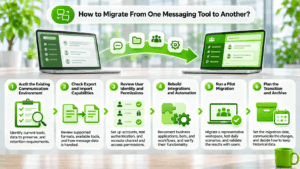
Moving to a new messaging platform involves more than creating employee accounts.
Organizations may need to transfer conversation history, preserve important files, rebuild project channels, reconnect business applications, and establish new access policies.
Not every messaging vendor supports importing every type of data from competing products.
Migration capabilities should therefore be evaluated before selecting a replacement.
1. Audit the Existing Communication Environment
Identify which applications employees currently use and what information needs to be preserved.
The audit should include messages, files, channels, user accounts, integrations, automated workflows, and external conversations.
Organizations should also determine which information must be retained for legal or operational reasons.
2. Check Export and Import Capabilities
Different platforms support different migration formats.
Some products provide tools for importing messages from specific competitors. Others offer APIs that can be used to develop custom migration procedures.
However, a technically successful import does not necessarily preserve every original property.
Message authorship, timestamps, reactions, threaded replies, and file references may be handled differently.
3. Review User Identity and Permissions
Employee accounts in the new platform must be associated with the correct identities.
Organizations using corporate directories should test account synchronization and authentication.
Channel permissions and external access also require attention because the original platform’s permission model may not match the new system.
4. Rebuild Integrations and Automation
Existing bots, notifications, and workflow automations may not transfer automatically.
An integration used to create tickets from messages may require a different API or event structure in the new platform.
These processes should be tested before the old system is retired.
5. Run a Pilot Migration
A pilot should include representative departments and realistic data.
For example, a company can migrate one project workspace containing channels, attachments, external users, and automated notifications.
Participants should verify that they can find historical information and perform their daily work.
6. Plan the Transition and Archive
Once the pilot succeeds, the organization can define a migration date and communication policy.
Employees need to know when to stop posting in the previous platform and where new conversations should take place.
Some historical information may remain in a read-only archive if importing it is impractical or unnecessary.
Migration Checklist
|
Migration component |
What to verify? |
Common difficulty |
|---|---|---|
|
User accounts |
Identity mapping and provisioning |
Different usernames and authentication methods |
|
Channels and groups |
Membership and visibility |
Different channel permission models |
|
Message history |
Export format, timestamps, authorship |
Unsupported import formats |
|
Attachments |
File integrity and accessibility |
Broken file references or storage restrictions |
|
Threads and reactions |
Preservation of discussion context |
Different conversation structures |
|
Integrations |
APIs, webhooks, and notifications |
Workflows that require rebuilding |
|
External collaboration |
Guest invitations and partner access |
Incompatible external access policies |
|
Archived data |
Retention and legal requirements |
Incomplete history or inaccessible exports |
A successful migration should be evaluated by whether employees can continue working without losing essential information, not simply by whether the new application is installed.
How to Implement Messaging Tools in an Organization?
Introducing a messaging platform should involve organizational planning rather than simply adding another application to employees’ devices.
A structured implementation reduces the risk of duplicated communication and fragmented information.
1. Define Communication Requirements
Identify which teams need direct messages, channels, external collaboration, voice calls, or video conferencing.
Document requirements for identity management, security, integrations, and deployment.
2. Establish Communication Rules
Determine which information belongs in shared channels, which issues require direct messages, and which decisions must be recorded in task or document management systems.
Employees should understand when a live meeting is necessary and when asynchronous communication is more appropriate.
3. Configure Access and Administration
Create employee accounts, assign permissions, and enable appropriate authentication methods.
Establish rules for guest access, file sharing, message retention, and account removal.
4. Run a Pilot Deployment
Select employees representing different work scenarios.
Test messaging, search, file exchange, notifications, calls, and administrative procedures.
Collect feedback about usability and missing functions.
5. Measure Results Before Wider Adoption
Evaluate whether the platform helps employees resolve questions, find information, and coordinate responsibilities.
The objective is to improve communication outcomes rather than increase the number of messages.
How to Measure Messaging Tool Effectiveness?
A messaging platform should help employees communicate more productively.
Message volume alone is a poor measure of success because a team can send fewer messages while completing work more efficiently.
Organizations should focus on indicators connected to actual business processes, using consistent measurement periods and clearly defined units.
|
Performance indicator |
How to measure it? |
Unit and recommended period |
|---|---|---|
|
Internal request resolution time |
Average elapsed time between a request and its confirmed resolution |
Business hours per request, measured monthly |
|
Repeated questions |
Number of recurring requests for information already available in approved resources |
Requests per 100 inquiries, measured monthly |
|
Incident coordination time |
Average time between an incident report and assignment of a responsible employee |
Minutes per incident, measured monthly |
|
Unresolved discussions |
Action-related conversations without an assigned owner divided by all conversations requiring action |
Percentage per month |
|
Employee onboarding time |
Time from an employee’s start date until independent completion of defined routine tasks |
Working days per employee, reviewed quarterly |
|
Unproductive meetings |
Meetings ending without a documented decision, action, or justified informational outcome |
Percentage of reviewed meetings per month |
For resolution time, organizations should decide whether the clock stops during weekends, holidays, and periods when a request is waiting for external information.
Repeated questions should be counted using consistent categories rather than subjective judgments by individual managers.
Incident coordination time should distinguish incident severity because major outages and routine technical requests are not directly comparable.
Meeting effectiveness should be assessed through representative samples rather than treating every informational meeting as unnecessary.
How to Compare Results?
Establish a baseline before changing the messaging platform or communication rules.
For example, an IT department may previously require an average of 30 minutes to identify the responsible engineer for an incident. After introducing dedicated incident channels and clear escalation rules, that time may fall to 15 minutes.
This represents a 50% reduction in coordination time.
However, the comparison is meaningful only if the organization examines incidents of similar severity and considers staffing, workload, and process changes.
For operational indicators, a useful starting point is to compare a baseline month with a month after the pilot has stabilized. Longer-term indicators, such as onboarding time, may require quarterly review.
Messaging metrics should support process improvement rather than individual employee surveillance.
Insight 4. A Messaging Platform Should Preserve Decisions, Not Just Conversations: A conversation can contain an important decision, but that decision is not operationally useful unless someone is responsible for implementing it.
This creates a difference between communication activity and business progress.
A productive communication process follows a clear sequence:
Discussion → Decision → Assigned responsibility → Action → Verified result
For example, employees may discuss a customer problem in a support channel.
Once the solution is agreed upon, the relevant task should receive an owner and deadline.
If the decision remains only in chat history, employees may assume someone else is handling the issue.
Messaging platforms become more valuable when they connect conversations to actions through built-in workflows or integrations with task management systems.
Common Mistakes When Using Messaging Tools
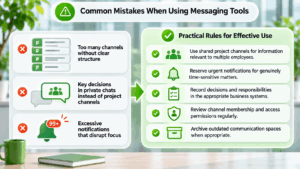
Even advanced messaging platforms can become difficult to use when organizational practices are inconsistent.
One common problem is creating too many channels without naming rules or clear ownership. Employees may struggle to identify where information belongs.
Another mistake is relying on private conversations for decisions that should be visible to the entire project team.
Frequent notifications can also reduce concentration when every message is treated as urgent.
Organizations can reduce these problems by establishing several practical rules:
- Use shared project channels for information relevant to multiple employees.
- Reserve urgent notifications for genuinely time-sensitive matters.
- Record decisions and responsibilities in the appropriate business systems.
- Review channel membership and access permissions regularly.
- Archive outdated communication spaces when appropriate.
These practices help prevent messaging tools from becoming disorganized collections of unrelated information.
Which Messaging Tool Is Best for Your Business?
Different business environments benefit from different communication capabilities.
|
Business scenario |
Main requirement |
Suitable tools |
|---|---|---|
|
Small project team |
Fast setup and organized discussions |
Slack, Google Chat |
|
Microsoft 365 organization |
Messaging connected to documents and meetings |
Microsoft Teams |
|
Distributed engineering team |
Structured asynchronous conversations |
Zulip |
|
Small group video communication |
Interactive video chat |
Conferendo |
|
Meeting-intensive organization |
Persistent messaging connected to video meetings |
Zoom Workplace |
|
Corporate communication on private servers |
Messaging and integrated video conferencing |
TrueConf Server |
|
IT operations and incident response |
Structured operational procedures |
Mattermost |
|
Internal messaging with external customer conversations |
Omnichannel communication |
Rocket.Chat |
|
Federated communication between organizations |
Independent messaging infrastructure |
Element |
|
Self-hosted document collaboration |
Messaging integrated with file storage |
Nextcloud Talk |
|
Confidential enterprise communication |
End-to-end encryption and controlled deployment |
Wire |
There is no universal winner.
The most suitable platform is the one that supports the organization’s actual workflows while meeting its requirements for security, administration, availability, and infrastructure control.
Conclusion
Messaging tools are essential for modern business communication because they connect employees, organize discussions, preserve information, and support collaboration across departments and locations. Slack, Microsoft Teams, Google Chat, and Zoom Workplace offer different approaches to cloud collaboration, while Zulip specializes in structured asynchronous conversations. Rocket.Chat, Mattermost, Element, and Nextcloud Talk provide self-hosted options, Conferendo focuses on video-centered communication, TrueConf Server combines corporate messaging with private video conferencing, and Wire emphasizes encrypted enterprise collaboration.
Choosing the right messaging platform requires more than comparing chat interfaces or subscription prices. Businesses should evaluate conversation structure, integration capabilities, deployment architecture, identity management, and migration requirements. They should also consider how messages become decisions and how those decisions become completed work. The most effective messaging environment is not necessarily the one generating the most activity, but the one helping employees find information, coordinate responsibilities, and resolve business problems efficiently.
FAQ
What are messaging tools used for in business?
Messaging tools help employees exchange information, coordinate projects, share files, and communicate across departments. Platforms such as Slack, Microsoft Teams, and TrueConf also provide organizational capabilities, including group conversations, administrative controls, and connections to live meetings.
Which messaging tools are best for remote teams?
Slack, Microsoft Teams, Google Chat, and Zulip suit different remote communication requirements. Teams that rely on frequent video meetings may also consider Zoom Workplace or TrueConf, while organizations requiring independent infrastructure can evaluate self-hosted platforms.
Can messaging tools work without an internet connection?
Some self-hosted messaging platforms can operate within private networks without public internet access. The full licensed edition of TrueConf Server supports autonomous internal communication in suitable configurations, while other solutions have different infrastructure and licensing requirements.
Can I migrate chat history between messaging tools?
Migration is possible between some messaging platforms, but support for messages, threads, attachments, reactions, and permissions varies. Organizations considering a move to TrueConf, Mattermost, or another enterprise platform should verify available import methods and test representative data before retiring the existing system.
What is the difference between a team messaging app and a secure enterprise messenger?
A team messaging app focuses on conversations, channels, and collaboration, while a secure enterprise messenger must also meet the organization’s requirements for authentication, encryption, access controls, and administration. Platforms such as TrueConf, Wire, and Element address different enterprise security needs, but their encryption models, deployment options, and administrative capabilities should be evaluated separately.
Are self-hosted messaging tools more secure than cloud messaging apps?
Self-hosting provides greater control over infrastructure placement but does not automatically guarantee stronger security. Platforms such as TrueConf, Element, and Mattermost still require access management, updates, backups, and monitoring, while cloud services must be evaluated according to their encryption, identity controls, and administrative policies.
Are free messaging tools suitable for business use?
Free messaging tools can be suitable for small teams with straightforward requirements, but they may limit message history, administration, integrations, or infrastructure options. For example, TrueConf Server offers a free edition, while advanced deployment and isolated-network scenarios require appropriate licensing. Businesses should compare the capabilities of the exact free and paid editions rather than relying on the product name alone.